


Live Stream Sign-In Guide
Follow these step-by-step instructions to sign in and join the broadcast of Leading Edge Medicine. Choose your sign-in method below.
Method 1
For first-time visitors who do not yet have an account
On the live stream page you will see a dark screen. Click either the play icon or the Join Live Stream button to begin.
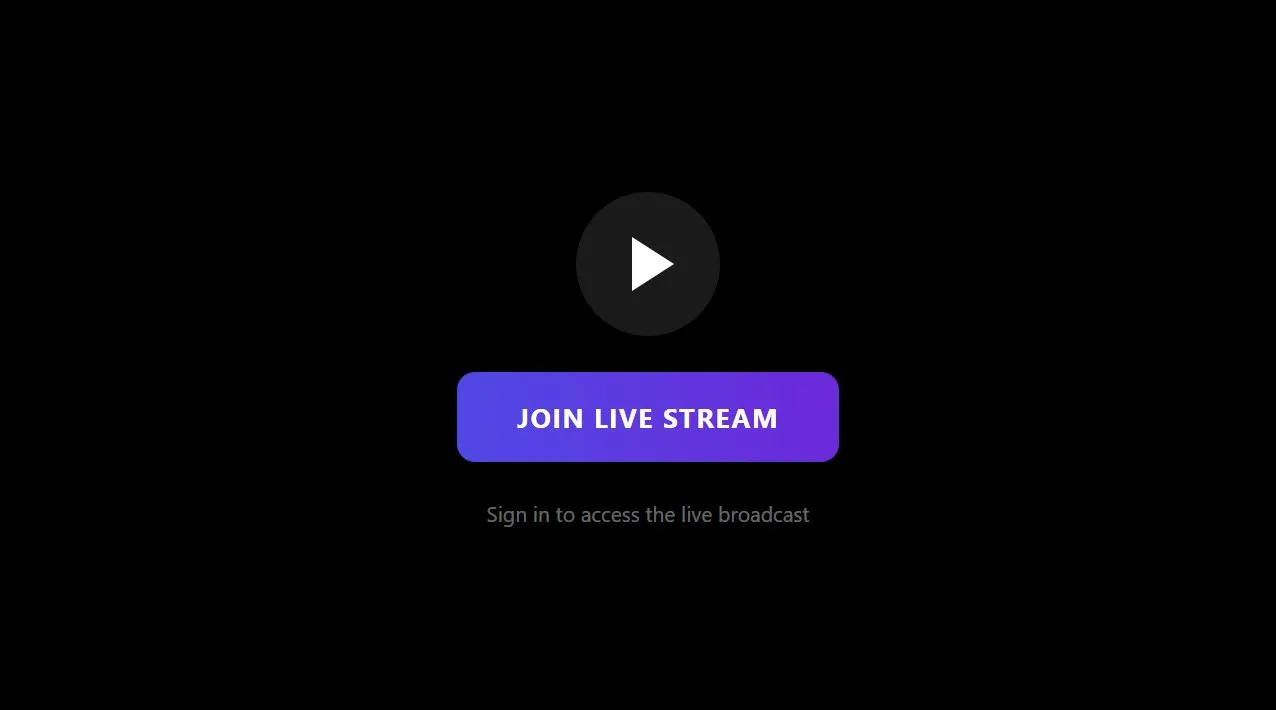
Click the play icon or the Join Live Stream button
A sign-in window will appear. Type in your email. Tick the marketing checkbox, then click Continue.
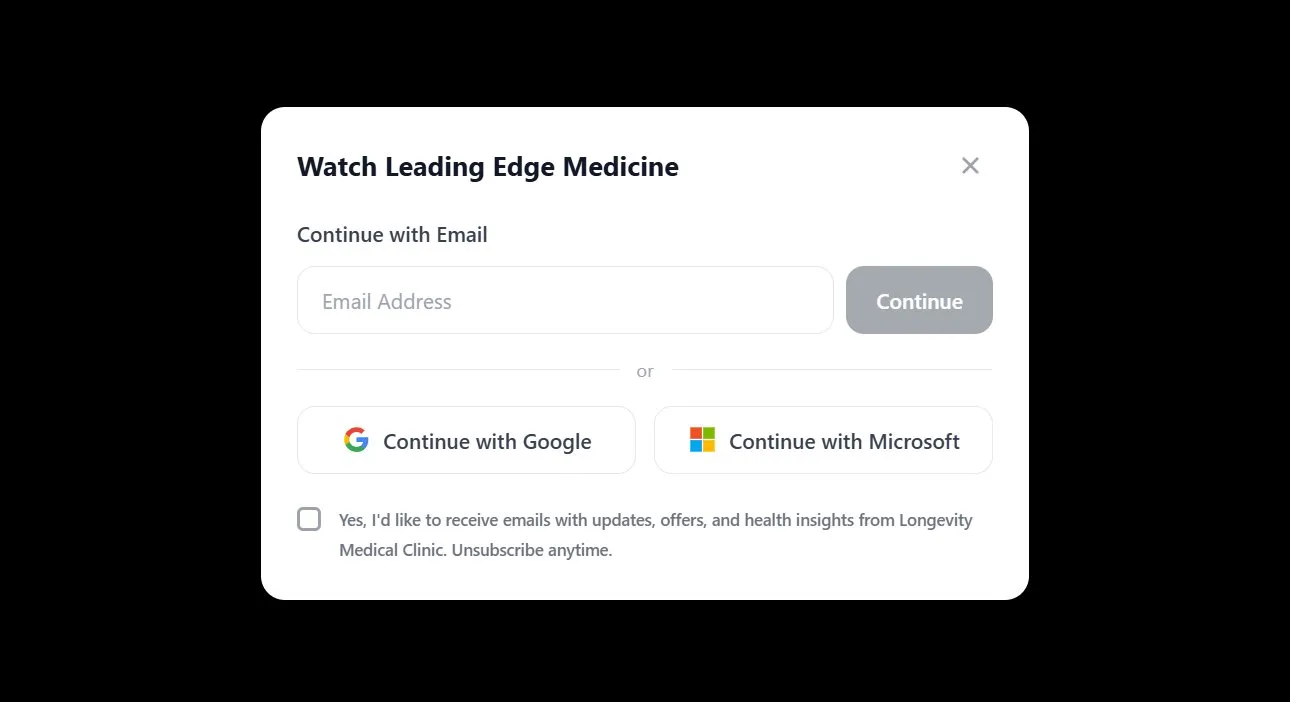
Enter your email and tick the checkbox, then click Continue

Make sure this box is ticked before continuing
Enter your name and create a password. Your email will already be filled in. Click Create Account when you are done.
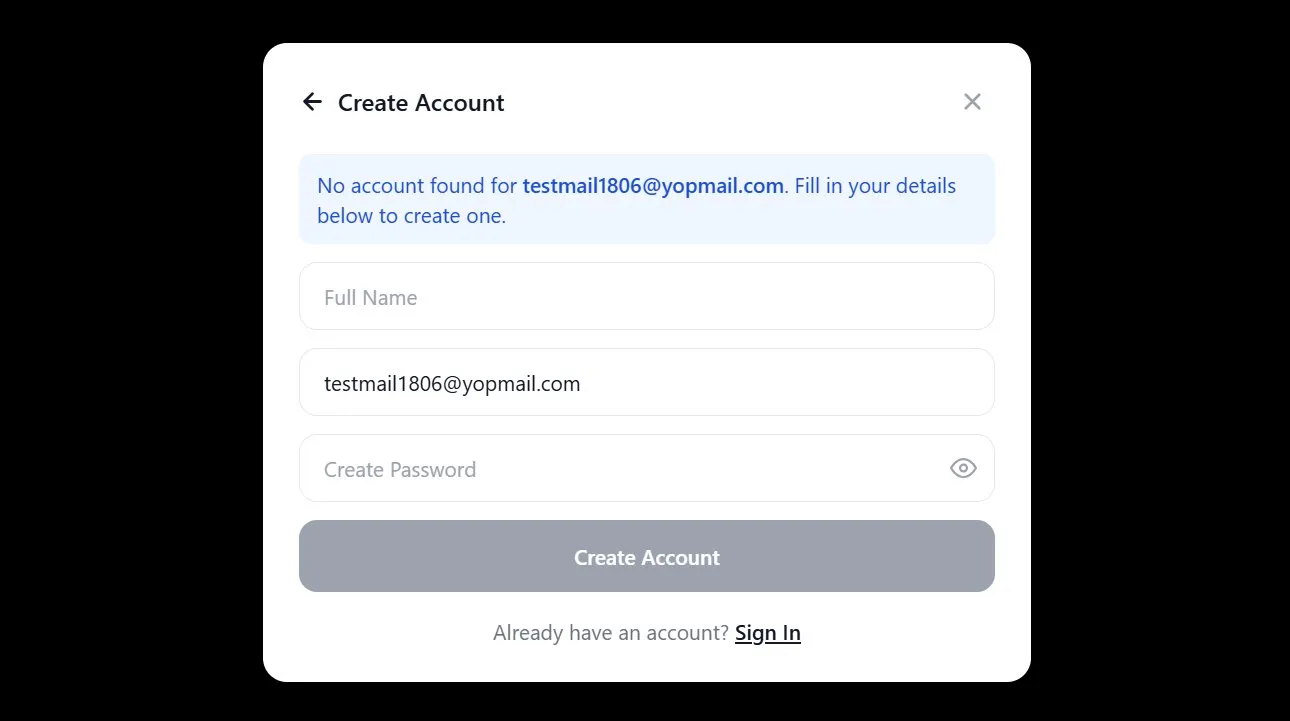
Fill in your name and create a password
A 6-digit code will be sent to your email. Enter it and click Verify & Sign In. If the code does not arrive, click Resend code.
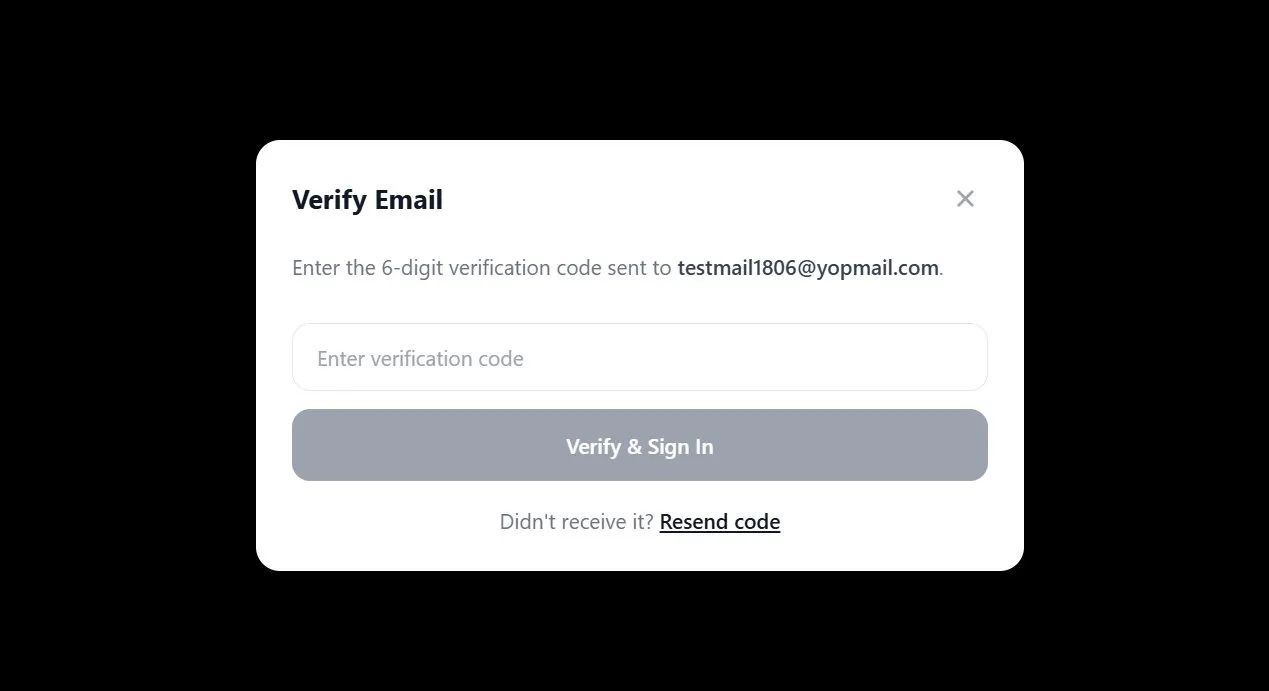
Enter the 6-digit code from your inbox
Check your inbox for an email from Longevity Medical Clinic. The large number shown is your verification code. Enter it in the box from the previous step.
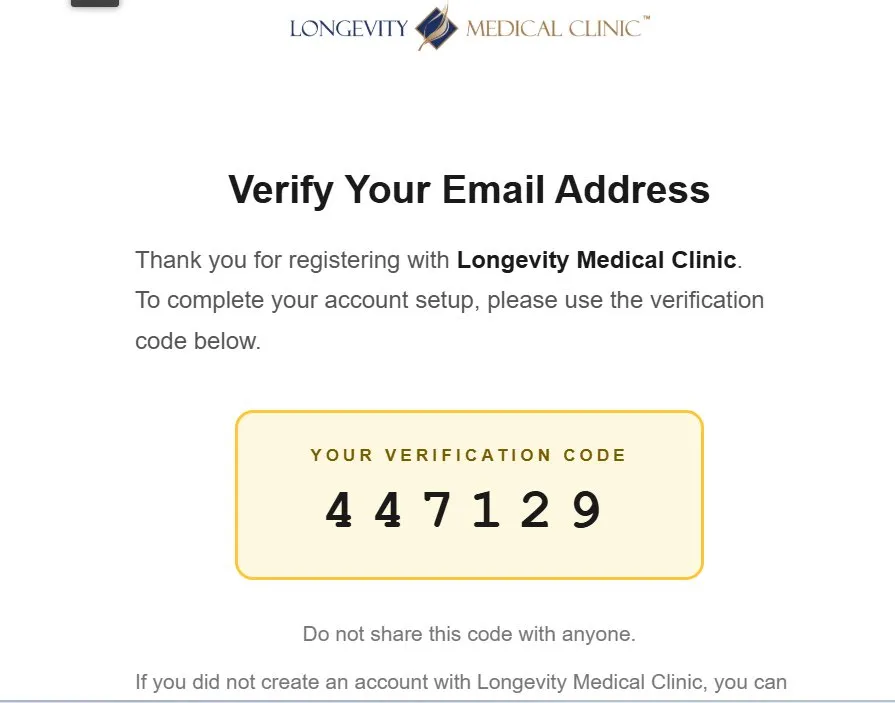
Your verification code will look like this
Method 2
For users who already have an account with Longevity Medical Clinic
Click the play icon or the Join Live Stream button to open the sign-in window.
Click the play icon or the Join Live Stream button
Type in the email address linked to your account. Tick the checkbox and click Continue.
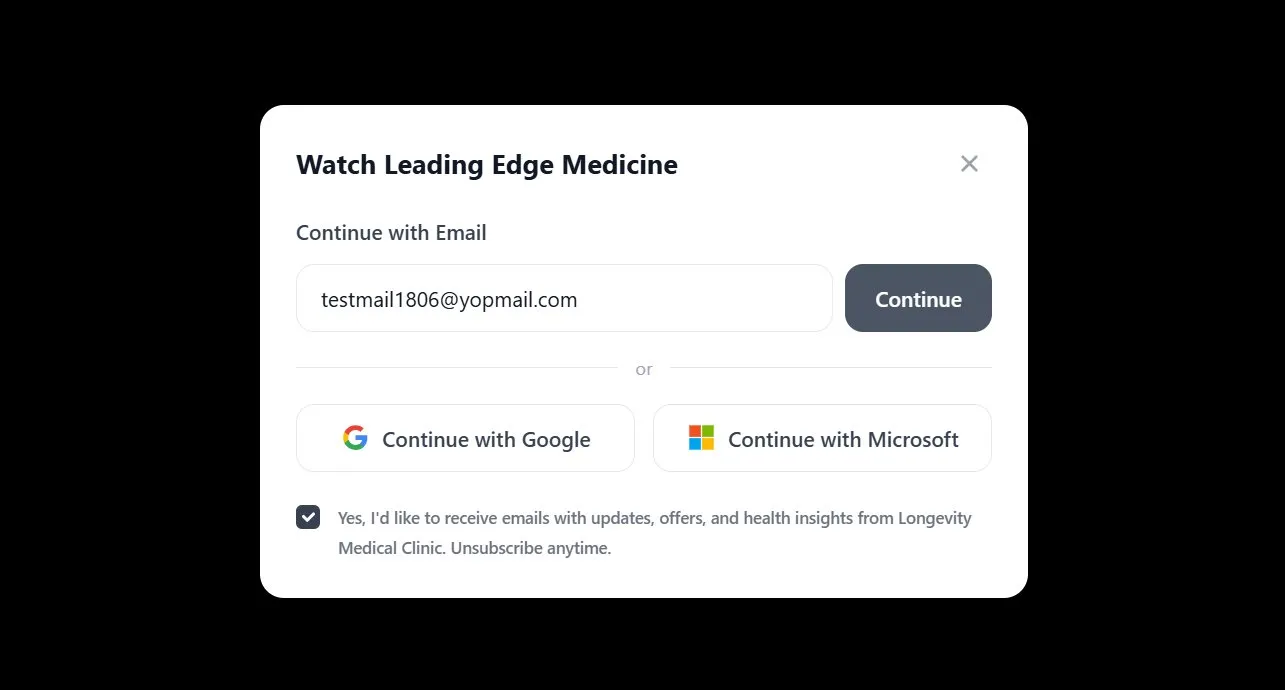
Enter your email, tick the checkbox, and click Continue
Your account already exists, so you will be taken straight to the Login screen. Enter your password and click Login. The stream will open immediately.
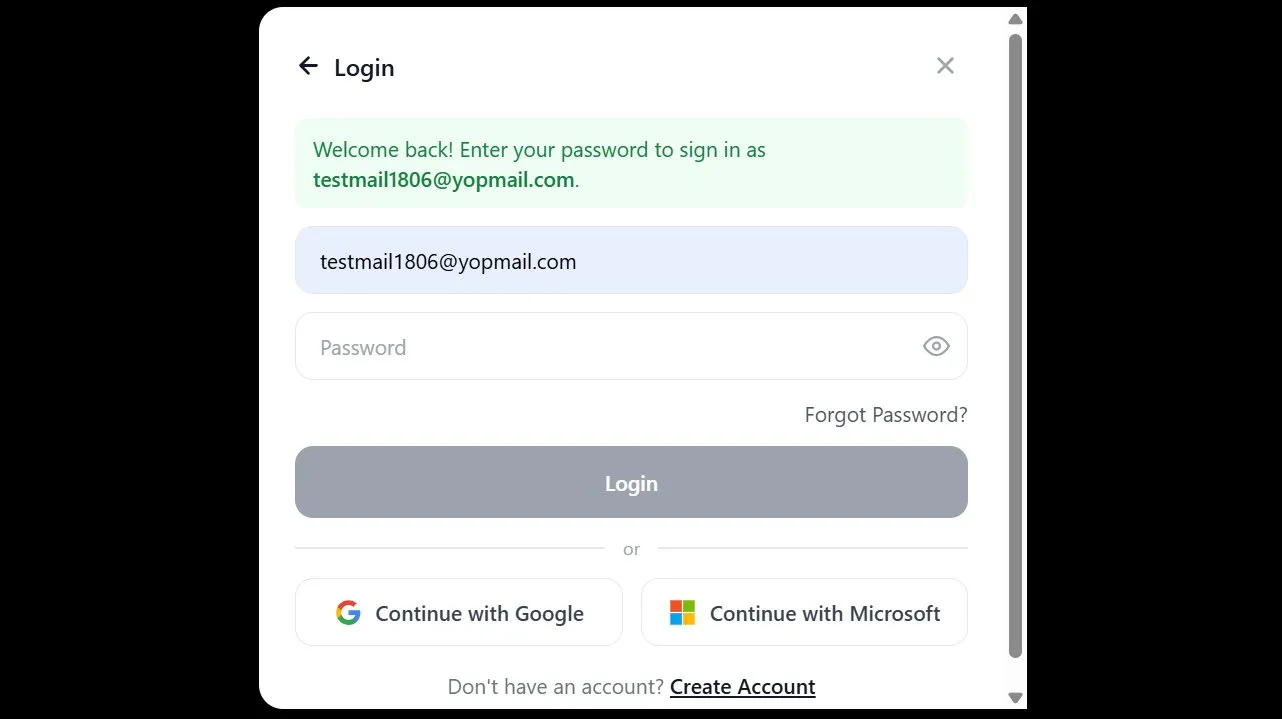
Enter your password and click Login
Method 3
Use your existing Google account — no new password needed
Click the play icon or the Join Live Stream button to open the sign-in window.
Click the play icon or the Join Live Stream button
In the sign-in window, click the Continue with Google button.
Click Continue with Google
A Google sign-in page will open in a new window. Select the Google account you want to use, or enter your Google email and password if prompted.
Google may ask you to confirm that you allow Longevity Medical Clinic to verify your identity. Click Allow or Continue to proceed.
Method 4
Use your existing Microsoft or work account — no new password needed
Click the play icon or the Join Live Stream button to open the sign-in window.
Click the play icon or the Join Live Stream button
In the sign-in window, click the Continue with Microsoft button.
Click Continue with Microsoft
A Microsoft sign-in page will open. Enter your Microsoft email address (Outlook, Hotmail, or a work email) and click Next. Then enter your password and click Sign in.
Microsoft may send a prompt to your phone or authenticator app asking you to approve the sign-in. Tap Approve and return to the live stream page.
Method 5
Reset your password if you cannot remember it
On the Login screen, click the Forgot Password? link on the right-hand side beneath the password field.
Click Forgot Password? on the Login screen
A new window will ask for your email address. Type in the email linked to your account and click Send Verification Code.
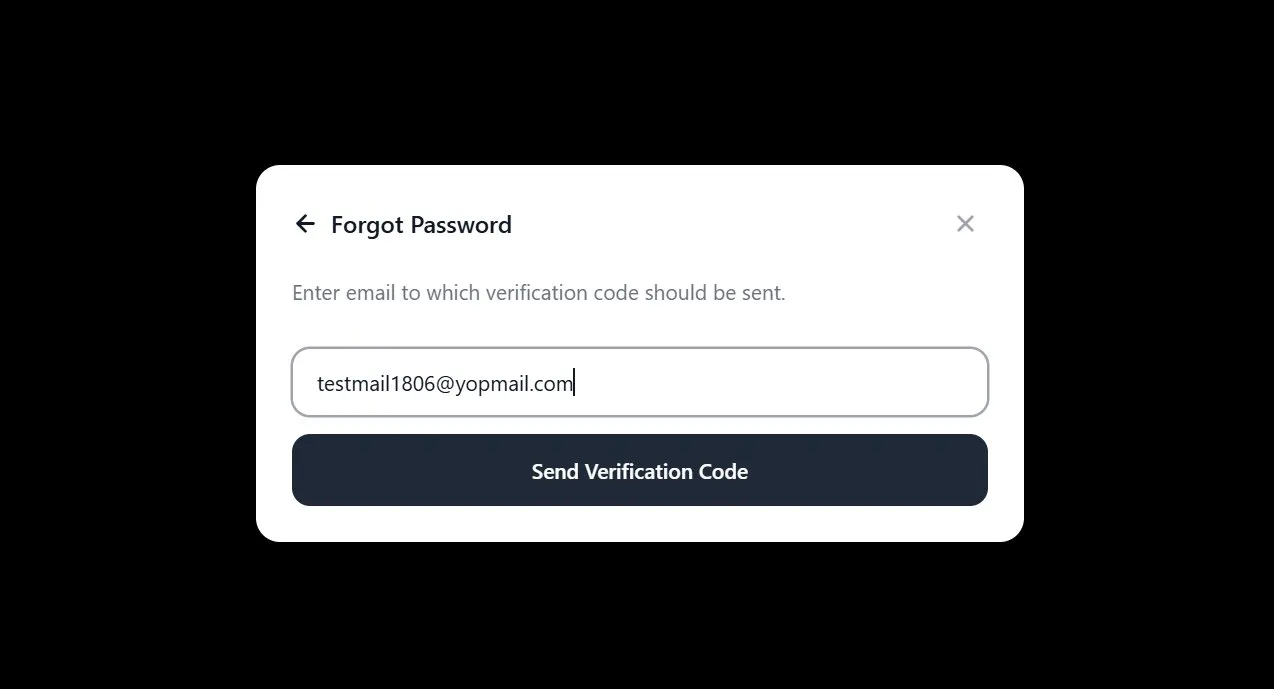
Enter your email and click Send Verification Code
A verification code will be sent to your email. Check your inbox for an email from Longevity Medical Clinic and note the 6-digit code shown.
Your verification code will arrive by email
A Reset Password screen will appear. Enter the verification code, then type in your new password and click Reset Password.
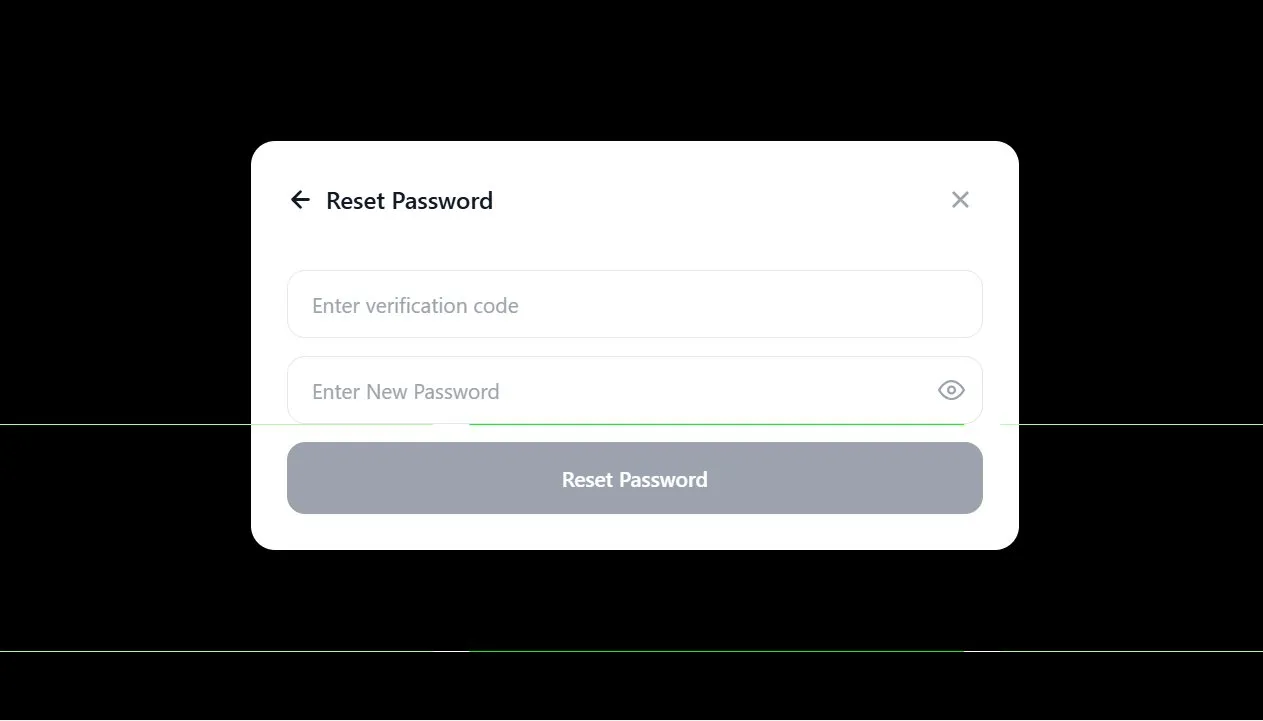
Enter the code and your new password, then click Reset Password
You will be taken back to the Login screen. Enter your password and click Login to access the live stream.
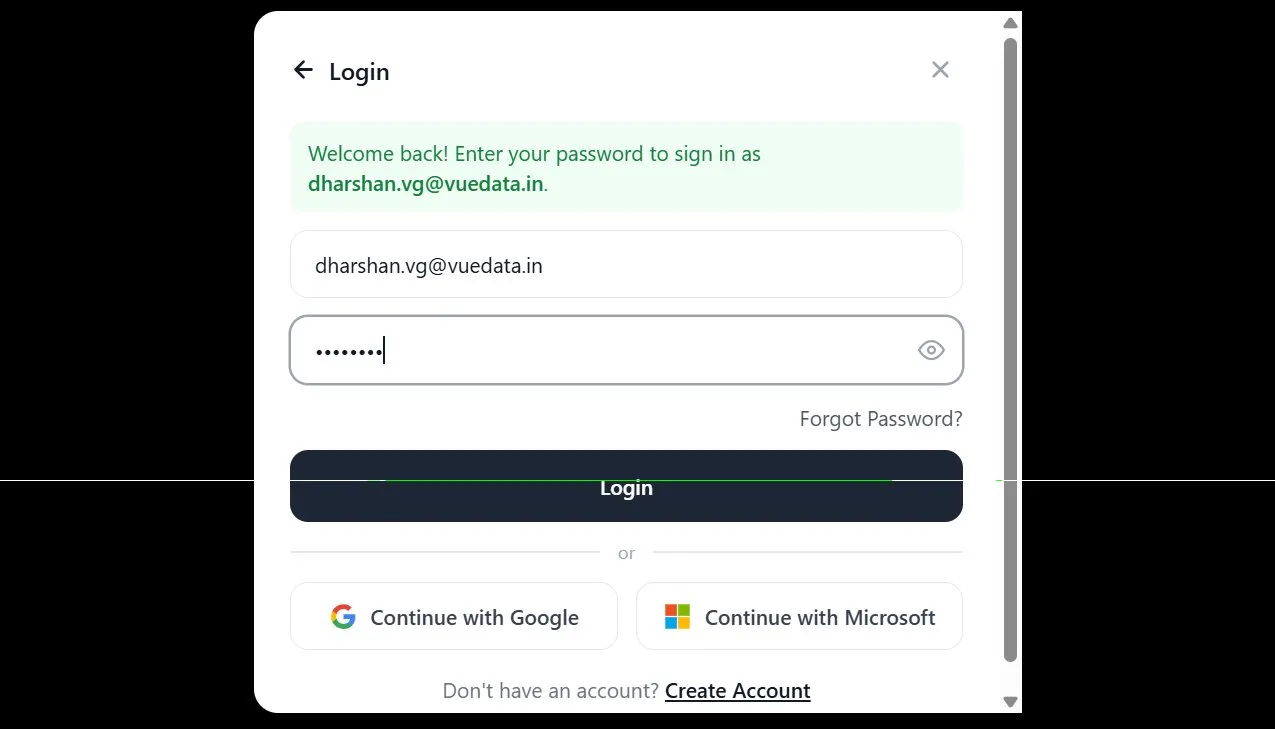
Enter your new password and click Login
If any step does not work as described please email us at contactus@longevitymedicalclinic.com and we will be happy to help you out.


